How to Unsend an Email in Outlook and Gmail?
You hit Send… and instantly regret it.
Wrong person. Missing attachment. Or maybe the email just sounded better in your head.
So the big question pops up: can you unsend an email?
Short answer: sometimes.
Long answer: it depends on whether you’re using Gmail or Outlook—and how fast you act.
Many readers instantly wonder, Can I unsend an email?
Let’s break it down in plain English, without tech headaches.
Can you unsend an email, really?
Here’s the honest truth:
You usually can’t pull back an email once it’s delivered to someone else’s inbox.
What email services actually give you is a short delay window. During that window, you can stop the email before it fully sends. After that? The email is already gone.
Think of it like tossing a letter into a mailbox. Once it’s picked up, you can’t chase the mail truck.
Still, both Gmail and Outlook give you some control—if you set things up right.
How to unsend an email in Gmail?
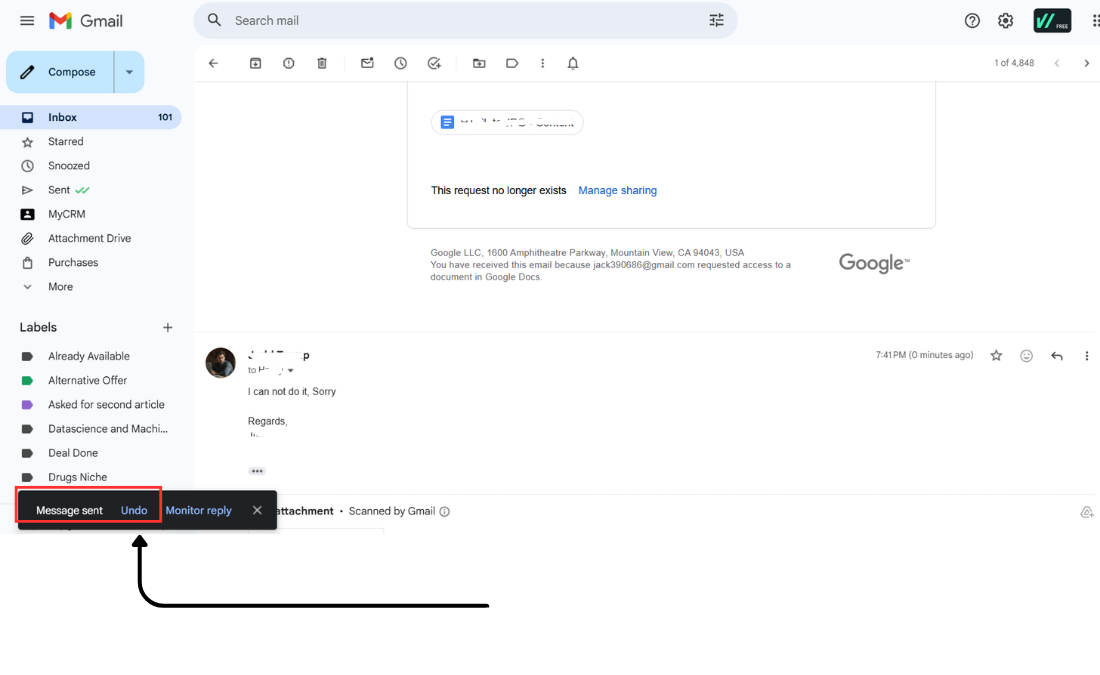
Gmail does this better than most. It gives you an Undo Send option, which is basically a short grace period.
Step 1: Turn on Undo Send (important)
If you haven’t done this yet, stop and set it up now:
Open Gmail settings
Find Undo Send
Choose a cancellation period (5, 10, 20, or 30 seconds)
Save changes
Step 2: Use it after sending
When you send an email, you’ll see a small message at the bottom saying “Message sent” with an Undo button.
Click Undo before the timer runs out, and the email opens back up like nothing happened.
That’s it. That’s how to unsend an email in Gmail.
Important thing to know
Once the timer ends, Gmail cannot unsend the email
The message is already delivered
No magic button later
This is why people often search for things like unsend Gmail and feel disappointed afterward.
How to unsend an email in Outlook
Outlook works very differently—and honestly, it’s more limited.
Outlook Recall (what it really does)
Outlook has a feature called Recall This Message, but here’s the catch:
It only works if both you and the recipient use Microsoft Outlook
You must be on the same organization or Exchange server
It often fails silently
How to try recalling an email in Outlook
Open Sent Items
Double-click the email
Click Recall This Message
Choose to delete unread copies
If it works, great.
If it doesn’t, the recipient may still see the original email, and possibly a recall notification too. Awkward.
Why unsending emails usually doesn’t work
Email isn’t like chat apps. Once it leaves your outbox:
It travels across mail servers
It lands in someone else’s inbox
You no longer control it
That’s why most “unsend” features are really send delays, not true take-backs.
Understanding this saves you from false hope later.
Smart ways to avoid needing to unsend emails
Since unsending is limited, prevention is your best friend.
Here’s what actually helps:
Turn on a send delay in Gmail or Outlook
Re-read emails out loud before sending
Attach files before writing the email
Use a draft pause for emotional emails
FAQ
If you delete an email, does it unsend?
No.
Deleting an email only removes it from your own inbox or sent folder. The recipient still has their copy.
This is one of the most common email myths.
How long do you have to unsend an email in Gmail?
Up to 30 seconds, depending on your settings. After that, it’s permanent.
Can you unsend an email after someone opens it?
No. Once the email is delivered—opened or not—it can’t be pulled back.
Is there any tool that truly unsends emails?
Not really. Some email tools offer delays or confirmations, but no tool can erase an email from someone else’s inbox after delivery.
You might add an outbound link here using anchor text like
“email sending best practices”
Final takeaway
Yes, you can unsend an email—but only in a short window, and mostly in Gmail. Outlook’s recall works in very specific situations and shouldn’t be trusted.
The safest move?
Give yourself a few extra seconds before emails go out. That tiny delay saves more embarrassment than any unsend button ever will.