How to Add Email Contacts to Gmail, Yahoo Mail
Ever spent way too long searching for a friend’s email address when you need it? You’re not alone! Keeping an organized address book in your email makes life so much easier. Imagine typing a name and having the email fill in automatically – no more memory games or digging through old messages. If you’ve ever been curious about how to add email contacts in different services, you’re in the right place. This friendly guide will show you how to add a contact in Gmail, how to save contacts in Yahoo Mail, and even how to add contacts to Outlook. By the end, you’ll be able to quickly add anyone to your email contacts, whether you’re on a computer or using your phone.
How to Add Contacts to Gmail
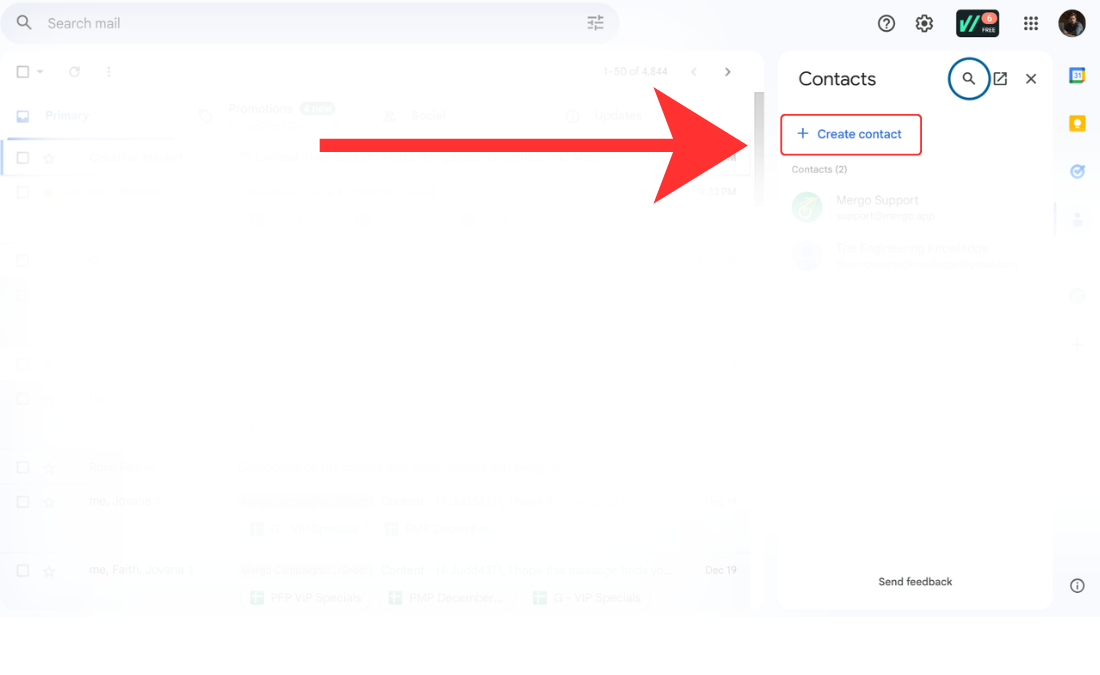
Gmail (which uses Google Contacts) makes it easy to add new people to your address book. In fact, Gmail automatically saves the email address of anyone you send a message to – it puts these in a hidden “Other Contacts” list. Still, it’s a good idea to formally add important people to your main contacts list so you can attach names, phone numbers, and other info. Let’s go through the ways you can add contacts in Gmail:
On a Computer (Gmail Web)
Adding a contact in Gmail on your computer is straightforward:
Open Google Contacts: On your computer, sign in to your Gmail account. Click the Google Apps menu (the 9-dot grid icon in the top-right of Gmail) and choose Contacts. This will open the Google Contacts screen (where Gmail stores your contacts).
Create a new contact: In Google Contacts, click the “Create contact” button. Then select “Create a contact” (if there’s a dropdown).
Enter the person’s information: Type in the contact’s name and email address. You can also add other details like phone number, address, or any notes, but only the name and email are required to save a basic contact.
Save the contact: After filling in the details, click Save. That’s it – the person is now added to your Gmail contacts! Next time you compose an email and start typing their name, Gmail will auto-complete their email address.
Quick tip: If you already have an email from someone, you can add them to contacts without opening the Google Contacts page. Open the email from that person in Gmail, then hover your mouse over their name or email address in the message header. A small contact card will pop up. Click the “Add to Contacts” button on that card (it looks like a person icon with a plus +). Gmail will save that email address to your contacts instantly. (This way you don’t have to manually type anything – super handy!)
On a Phone (Gmail App)
If you use Gmail on a phone, the process to add contacts is a little different. The Gmail app itself doesn’t have a built-in Contacts section for manually adding people. But don’t worry, you have a couple of easy options:
Use the Google Contacts app: On Android phones, there’s a Contacts app (often pre-installed) that syncs with your Google account. Open the Contacts app on your phone and tap the + (plus) or “Add Contact” button. Enter the person’s name, email address, and any other info you want, then tap Save. This will add the contact to your Google/Gmail contacts. (On an iPhone, you can download the Google Contacts app and do the same thing. Alternatively, you can add the contact in your iPhone’s Contacts app and choose to save it to your Google account if you’ve set that up on your iPhone.)
Add from the Gmail app (via an email): If someone has emailed you, you can save them right from that email on your phone. Open the person’s email in the Gmail app, tap on their name or email address at the top of the message, and look for an option like “Add to Contacts” or “Add Contact”. Tap that, and the Gmail app will save the email address to your Google contacts. You might not even see a confirmation, but it’s added – Google will recognize the address next time.
Remember, Google contacts sync across all your devices. This means if you add a contact on your phone, it will show up when you use Gmail on your computer, and vice versa, as long as it’s the same Google/Gmail account. (Magic, right? ✨)
Need more help? For additional tips, you can check the official Google Contacts Help page for guidance on managing contacts. It has more details on things like grouping contacts or importing contacts from other services.
How to Add Contacts to Yahoo Mail
Yahoo Mail, like Gmail, will automatically remember people you’ve emailed before. If you send a message to a new email address, Yahoo will add it to your address book behind the scenes so that it can suggest it later. But what if you want to manually add a contact (or someone hasn’t emailed you yet)? In Yahoo Mail, you can add contacts on the website. Here’s how:
On a Computer (Yahoo Mail Website)
Go to Yahoo Mail and open Contacts: Log in to your Yahoo Mail in a web browser. Look for the Contacts icon – on the latest Yahoo Mail interface, this icon is usually in the upper-right area of the page (it looks like an address book or a person silhouette). Click the Contacts icon to open your contacts list.
Start a new contact: In the contacts panel that opens, click the option that says “Add a new contact” (you might find this at the bottom of the panel or as a plus + button).
Enter the contact’s details: A form will appear where you can type in the person’s name, email address, and any other details you have (company, phone number, etc.). You don’t have to fill every field — just name and email will do.
Save the contact: Click Save to add the person to your Yahoo contacts. Yahoo Mail will now recognize that email address and show the name you entered whenever you email this person.
That’s the basic way to add someone new in Yahoo Mail.
Alternative – Add from an email: If you already have an email from the person you want to add, you can save a couple of steps by adding them directly from that message:
Open the email from the person in Yahoo Mail.
Move your mouse over the sender’s name or email address at the top of the email. A small info card should appear with their name/address.
Click the “Add to contacts” button on that card. (Yahoo will then open the contact form with the email filled in for you.)
Add any extra info you want (like their name, if it’s not already showing), and click Save.
Using this method, you don’t even need to navigate to the Contacts page – Yahoo does it for you when you click “Add to contacts.”
Note: The Yahoo Mail mobile app doesn’t currently let you create new contacts from scratch. If you tap on “Contacts” in the Yahoo Mail app, it will show you a list of people you’ve emailed (it auto-saves those), but there isn’t an “Add Contact” button in the app. So if you need to manually add a brand-new contact in Yahoo, you’ll have to do it on the Yahoo Mail website using the steps above. (Any contact you add on the computer will still sync and appear in the app’s contact list, of course.)
For more details on managing Yahoo contacts, you might refer to Yahoo’s official help article on contacts (available on the Yahoo Help website). It covers editing and deleting contacts as well, in case you need those later.
How to Add Contacts to Outlook
Outlook (by Microsoft) has its own address book for storing contacts. The exact steps can vary a bit depending on whether you’re using the Outlook application on your computer (part of Microsoft Office/Microsoft 365) or Outlook on the web (Outlook.com), but the ideas are similar. We’ll explain the process for the Outlook program on a computer first, then mention the web version:
Using the Outlook Program (Windows/Mac)
Open your Contacts (People) in Outlook: In the Outlook email program on your PC or Mac, look for the People icon or the Contacts section. (In newer Outlook versions, the icon might look like two people and is usually at the bottom of the navigation pane or in the “More” menu.) Click People to view your contact list.
Create a new contact: Once you’re in the People/Contacts view, find and click the New Contact button. (Depending on your version, it might be a button that says “New Contact” or a plus + sign.)
Enter contact details: A contact form will pop up where you can type in the person’s information. At minimum, enter the Name and Email Address of the person you want to add. You can also fill in other fields like phone number, address, etc., if you have that info (these are optional).
Save the contact: After entering the details, click Save & Close. The new contact is now added to Outlook. Next time you compose an email, you can start typing their name and Outlook will suggest the email address.
That’s how you add someone from scratch.
Tip: If you already have an email from the person in your inbox, Outlook offers a super quick way to save them as a contact. Open the email, right-click on the sender’s name (or email address) in the message header, and choose “Add to Outlook Contacts” from the menu. This will open a new contact window pre-filled with their name and email. Add any extra info you want, then hit Save & Close. It’s a handy shortcut to avoid retyping their email address.
Using Outlook on the Web (Outlook.com)
If you use Outlook’s webmail (Outlook.com in a browser), adding contacts is also easy: after logging in, click on the People icon (it might be in the bottom left corner or top menu, represented by the silhouette of two people). Then click New Contact, fill out the person’s name and email in the form that appears, and save it. The interface will be slightly different from the desktop program, but the concept is the same – you enter details and save. Once saved, the contact will be available whenever you use Outlook on the web.
(Outlook.com also lets you add contacts by clicking on a sender’s name in an email and looking for an “Add to contacts” option on their profile card, similar to Gmail and Yahoo.)
for reference, Microsoft’s Outlook Support page provides more information on managing contacts if you need advanced help, but the steps above should cover the basics for adding a new contact.
Now you’re all set! 🎉 Whether you’re using Gmail, Yahoo Mail, or Outlook, you know how to add contacts to keep your email addresses organized. It only takes a minute, and it can save you lots of hassle later on. With your contacts neatly saved, sending emails will be quicker and more error-free – no more typing out long addresses every time. Happy emailing, and enjoy your well-organized contact list!