Best Ways to Check If Your Product Catalog Is AI-Shopping Ready
By Chase Dimond. Last updated: October 30, 2026.
An AI-shopping-ready catalog gives assistants product data they can read and verify: unique identifiers for every variant, the same price and availability on the product page, the structured data, and every feed, pages and images that crawlers can actually reach, and descriptions with measurable specs and a clear line on who the product is for. To check yours, run the 7 checks below on your top sellers, score each one 0 to 2, and then ask ChatGPT and Google real shopper questions and log what comes back.
Every brand owner I talk to is asking some version of the same question right now: "ChatGPT is recommending products. Is it recommending mine?" You can do most of it in an afternoon with a spreadsheet, your browser, and a free Google tool.
What "AI-shopping ready" means
- AI shopping assistant: a tool like ChatGPT or Google's AI Overviews and AI Mode that answers "what should I buy" questions and names specific products.
- Product feed: a file listing every product and variant with fields like title, price, availability, image, and link. You send it to a platform instead of waiting for a crawler to find everything.
- Structured data: code on your product page (usually JSON-LD using the schema.org
ProductandOffertypes) that states the product name, price, currency, and stock in a format machines read directly. - GTIN: the global barcode number (UPC, EAN, ISBN) for a specific product variant. MPN is the manufacturer part number, used when there is no GTIN.
- Agentic commerce: an assistant that goes past recommending and helps the shopper buy. OpenAI's version runs on the Agentic Commerce Protocol (ACP), which starts with a product feed.
Ready means one thing: when an assistant looks at your product, every source it checks says the same thing, and that thing is specific enough to match a shopper's question.
Where each field lives (Table A)
Assistants pull from more than one place. If a field is missing or different in one of them, you're giving the assistant a reason to doubt you.
| Field | Where it lives | Why an assistant needs it | Source |
|---|---|---|---|
| Product name | Page, schema, feed | Matches the product to the shopper's query | Google Search Central, Product snippet (name is required) |
| Price and currency | Page, schema (Offer), feed | Answers "under $X" questions and confirms the offer | Google Search Central (price required, priceCurrency recommended); OpenAI commerce docs |
| Availability | Page, schema (Offer), feed | Keeps sold-out items out of recommendations | Google Search Central; OpenAI commerce docs |
| GTIN / MPN and brand | Feed, schema | Identifies the exact variant across sites | Product feed best practice; confirm against the platform's current feed spec |
| Images | Page, feed | Shown in results; image URLs must load for the crawler | OpenAI Help Center crawler article |
| Description with specs | Page, feed | Lets the assistant match use cases and constraints | OpenAI commerce docs (descriptions are part of the feed) |
| Shipping and returns | Policy pages, feed where supported | Answers "free returns?" and "arrives by Friday?" | Operator check; confirm per platform spec |
Platform specifics verified as of October 30, 2026. These docs change often, so recheck them before you act.
The 7 checks
Run these on your top 50 products by revenue first. That's where a fix pays back fastest, and it keeps the job to one afternoon.
1. Identifiers and required fields
What to check: every top-selling variant has a GTIN (or MPN if it has no barcode), a brand, a title, a price, availability, an image, and a link. Each variant gets its own row. A hoodie in 4 sizes and 3 colors needs 12 rows.
How: export your products from Shopify (Products, then Export) and filter for blank barcode, vendor, or price cells.
Pass looks like: zero blanks on your top sellers.
2. Price and availability match everywhere
What to check: the price and stock status on the product page, in the structured data, in every feed you send out, and on any marketplace listing.
How: pick 10 products. Put the 4 sources side by side in a sheet.
Pass looks like: identical everywhere. An assistant that sees $49 on your page and $59 in your feed has no way of knowing which one is true. Don't make it guess.
3. Price and stock are in the initial HTML
What to check: whether the price and stock show up in the page source, or only appear after JavaScript runs.
How: open a product page, right-click, View Page Source, and search for the price. If it's there, good. If it only shows in the live page, a crawler may never see it.
Pass looks like: price, stock, and the Product structured data are all in the source. Google says it directly: merchants should put Product structured data in the initial HTML for best results, and JavaScript-generated markup can make Shopping crawls less frequent and less reliable for fast-changing data like price and availability (Google Search Central, verified as of October 30, 2026).
4. Crawler and image access
What to check: your robots.txt, your CDN or firewall bot rules, and whether your image URLs load for a bot.
How: open yoursite.com/robots.txt and look for any rule blocking OAI-SearchBot or a blanket block on bots. Then ask whoever runs your hosting or security to check the firewall and bot-protection settings.
Pass looks like: crawlers allowed, product pages and image URLs returning a 200. OpenAI's Help Center says to allow OAI-SearchBot to crawl product image URLs for product feeds, and warns that a 403 on the image host can block feed processing. It also says a successful response alone doesn't confirm the content loaded: a blank, login, or challenge page still fails (OpenAI Help Center, verified as of October 30, 2026).
5. Product structured data
What to check: that each product page has Product markup with a full Offer: price, priceCurrency, and availability.
How: paste a product URL into Google's Rich Results Test. Most Shopify themes output some Product markup. Check that it's complete and that the price matches the page.
Pass looks like: no critical errors and a full Offer. Per Google, price is required in an Offer, and priceCurrency is required for merchant listing experiences, so always include it. Don't use AggregateOffer to describe a set of your own variants.
6. Descriptions with measurable attributes and a "who it's for" line
What to check: whether your product copy answers the questions shoppers actually type. "Luxurious, premium, game-changing" matches nothing. "16 oz, dishwasher safe, keeps drinks cold for 24 hours" matches a lot.
How: read your top 10 product descriptions. Count the measurable facts: size, weight, material, capacity, compatibility, ingredients. Then look for one sentence that says who it's for, like "For runners who train in the rain."
Pass looks like: real specs plus a who-it's-for line on every top seller.
7. Policies with specifics, stated the same way everywhere
What to check: shipping costs and times, return windows, and who pays return shipping.
How: read your shipping and returns pages next to your product pages, footer, and any feed fields. "Fast shipping" and "easy returns" give an assistant nothing to quote. "Free shipping over $75, 30-day returns" does.
Pass looks like: concrete numbers, and the same numbers everywhere they appear.
The scorecard (Table B)
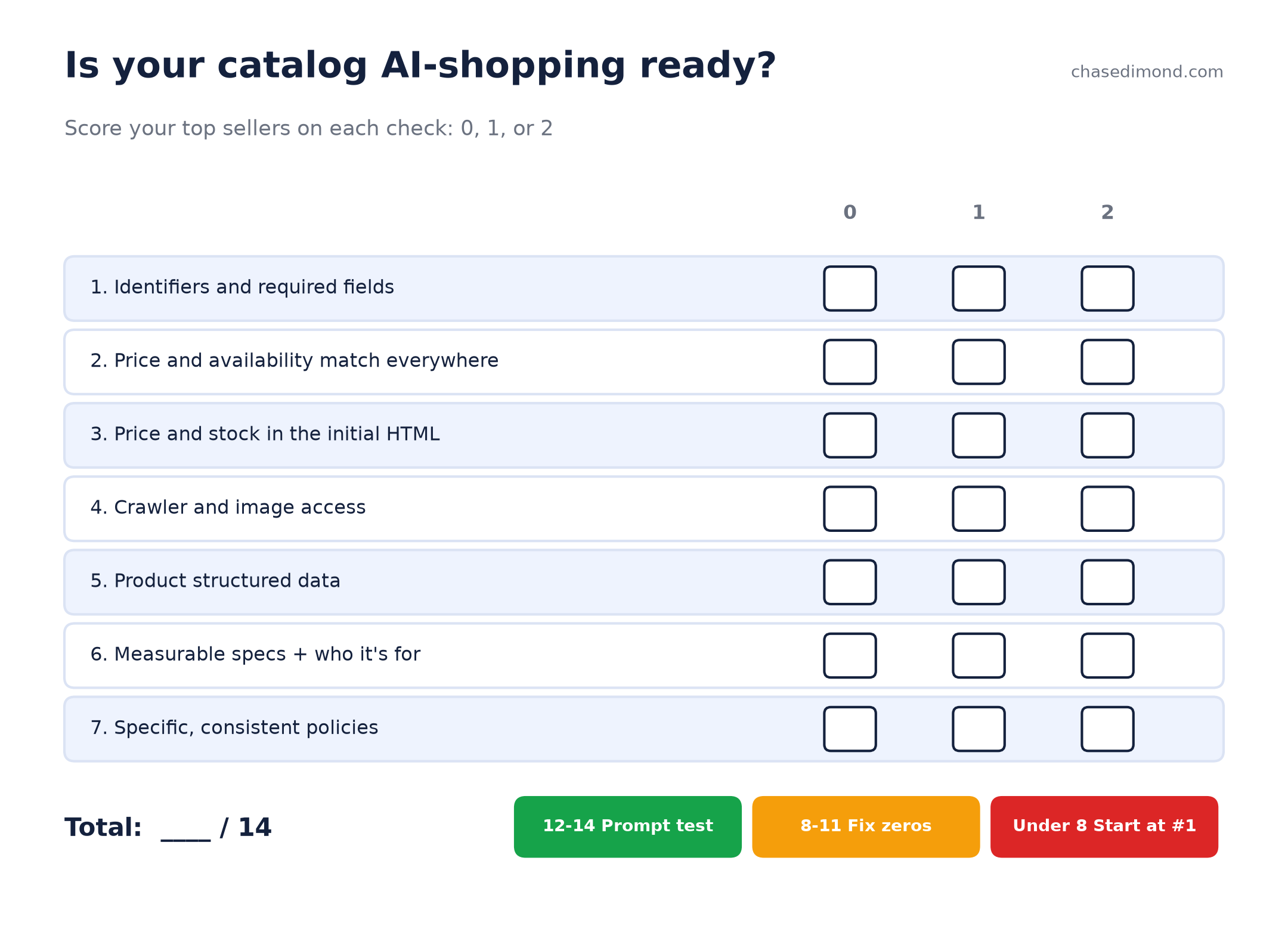
Score each check 0, 1, or 2. Max is 14. Do it on your top sellers, then redo it after you fix things.
| Check | 0 (fail) | 1 (partial) | 2 (pass) | Evidence to look at |
|---|---|---|---|---|
| 1. Identifiers | GTIN/MPN missing | Some variants have them | All top sellers, one row per variant | Product or feed export |
| 2. Price/stock consistency | Conflicts between sources | Minor lag during updates | Identical across page, schema, feed | Side-by-side sheet of 10 products |
| 3. Initial HTML | Price loads by JavaScript only | Partial (price but no schema, or the reverse) | Price, stock, and schema in source | View Page Source |
| 4. Crawler access | Blocked | Unknown or partial | Allowed, pages and images return 200 | robots.txt, CDN/bot rules, image URL checks |
| 5. Product schema | None | Incomplete Offer | Full Offer, no critical errors | Rich Results Test |
| 6. Descriptions | Adjectives only | Some specs | Specs plus who-it's-for line | Product page copy |
| 7. Policies | Vague | Partial | Specific and consistent | Policy pages vs product pages and feed |
How to read your score: 12 to 14, move on to prompt testing. 8 to 11, fix your zeros first, starting with checks 2 and 4, since those are the ones that can keep you out entirely. Under 8, start with check 1 and work down.
Track it over time: save your first score per product in the same sheet, fix the zeros, and rescore after each theme or feed change. The before and after on your own top sellers shows you exactly which fixes moved the needle.
Best way to check for each situation
Best for a small Shopify store: a manual top-50 audit
If you have under a few hundred products, skip the tools. Export your catalog, sort by revenue, take the top 50, and run the scorecard in a sheet. Use the Rich Results Test and View Page Source on 10 of them. One template usually covers every product page, so one theme fix can cover the store.
Best for large catalogs: feed validation plus a sample file
With thousands of SKUs, check the feed instead of individual pages. Validate a small sample feed file first, fix what fails, then roll the fix across the catalog. If you're applying to OpenAI's product feed program, note what its docs say right now: onboarding product feeds in ChatGPT is open to approved partners who apply, the path is to validate the required fields for every record, upload over SFTP, and keep the feed current with a full snapshot at least once a day (OpenAI commerce docs, verified as of October 30, 2026).
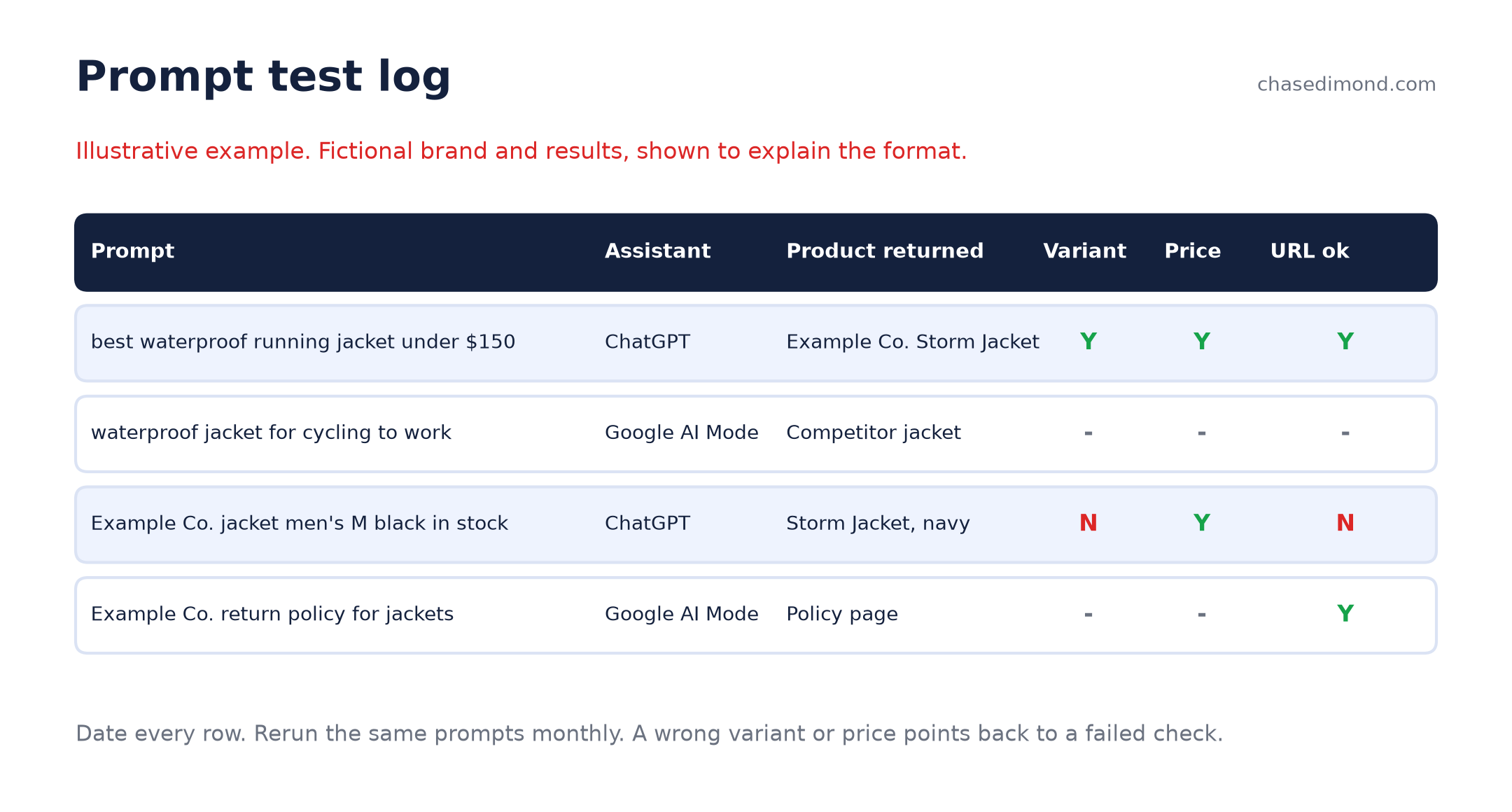
Best for testing real recommendations: a prompt test log (Table C)
The scorecard tells you if your data is clean. It doesn't tell you what assistants actually say. For that, ask them. Write 10 prompts the way a shopper would: one with a budget ("best running jacket under $150"), one with a use case ("waterproof jacket for cycling to work"), one naming a variant ("men's medium in black"), and a few naming your brand. Run them in ChatGPT and in Google, and log every answer.
| Prompt | Assistant | Product returned | Right variant? | Right price? | Cited URL supports the claim? | Date tested |
|---|---|---|---|---|---|---|
| best waterproof running jacket under $150 | ChatGPT | (fill in) | Y / N | Y / N | Y / N | (date) |
| [your brand] jacket men's medium black in stock | Google AI Mode | (fill in) | Y / N | Y / N | Y / N | (date) |
| (your prompt) | (assistant) |
Answers change from day to day, so date every row and rerun the same prompts monthly. The useful signal is the trend and the errors: a wrong price or a dead variant points straight back to a check you failed.
Where email fits
This is the part most AI-shopping guides skip. The clean catalog you build for assistants is the same catalog your emails pull from. If your product data is wrong, your emails are wrong too.
I use Omnisend for this. When you connect Shopify, it syncs your products automatically, and its Product Recommender block pulls each product's image, title, description, price, and link at the moment the email sends. It only shows in-stock products, so if your stock status is wrong in Shopify, your emails recommend the wrong things (Omnisend Help Center, verified as of October 30, 2026). One source of truth, used everywhere.
So fixing checks 1, 2, and 6 pays off twice. Your browse abandonment emails and the product blocks in your ecommerce email flows get better the same day. For the bigger picture, see my guides to Shopify email marketing, ecommerce email marketing, and email marketing strategy.
Common failures
- Stale sale prices. The sale ended on the site, but the feed or a marketplace still shows the sale price. Recheck check 2 the day after every promo.
- Variant mismatch. One row for a product that comes in 12 variants, or a variant image that shows the wrong color. The shopper asks for black and gets sent to navy.
- Blocked image host. The site is open, but images live on a CDN subdomain with bot protection that returns a 403. OpenAI specifically calls this out as something that can block feed processing.
- Adjective-only copy. "Elevated everyday essential" gives an assistant nothing to match against a question.
FAQ
What does it mean for a product catalog to be AI-shopping ready?
An AI-shopping-ready catalog gives assistants product data they can read and verify: unique identifiers for every variant, the same price and availability on the product page, structured data, and every feed, crawlable pages and images, and descriptions with measurable specs and who the product is for.
How do I check if my products are ready for ChatGPT shopping?
Audit your top sellers first. Confirm required fields and identifiers, compare price and stock across page, schema, and feed, check that robots.txt and your CDN allow OpenAI's crawlers and that images return 200, then ask an assistant real shopper questions and log whether it returns the right product, variant, and price.
Does my robots.txt or CDN block AI crawlers?
Check both. Read yoursite.com/robots.txt for rules blocking OAI-SearchBot or all bots, then have your hosting or security team check firewall, CDN, and bot-protection rules. OpenAI notes that robots.txt alone may not be enough, because those systems can block crawlers separately.
Where should a large catalog start?
With the products that drive the most revenue. Fix identifiers, price consistency, and descriptions on that set, validate a small sample feed file, then roll the fixes across the catalog.
Want a second set of eyes on your catalog and the emails it powers? See how to work with me.